
Your first litter is exciting, and a little nerve-racking. This guide shows how Breeders Aid helps at each stage, from the moment a pregnancy is confirmed to the day the last puppy goes home. Each section links to a step-by-step article if you want more detail. If you'd like a rehearsal first, everything here works in practice mode on made-up dogs.
Steps
Here's the whole journey at a glance. Tick them off as you go.
- Make sure mum (and dad, if he's yours) are in Dogs. See Add a dog to Breeders Aid.
- Follow the pregnancy in Breeding now and check the dates in the Calendar. See Follow a pregnancy from season to due date.
- A week before the due date, print the whelping-night quick-start and try Whelping mode in practice mode.
- When labour starts, tap New litter, link it to the pregnancy and choose Whelping mode. See Start a new litter.
- Tap Puppy born! for each puppy. See Record each birth in Whelping mode.
- Weigh the puppies once or twice a day. See Record and correct puppy weights.
- Keep the diary going and use Shift handover when someone else takes over.
- Record worming, vaccinations, microchips and vet checks as they happen. See Keep track of worming, vaccinations and vet checks.
- Add buyers, allocate puppies and get ready for go-home day. See Allocate puppies and get ready for go-home day.
Before the birth
Once the pregnancy is confirmed, open Breeding now (on Home, or at the top of the Dogs tab). Mum's card shows the stage, the season date, the due date and the Next: step. Tick off simple steps as they're done and record progesterone results on the card.
The Calendar lays out the pregnancy for you: Estimated ovulation, Pregnancy ultrasound, Pregnancy X-ray and Expected whelping, followed by estimated puppy care dates. Dates marked Estimated are best guesses; they firm up as you record more, and move to the real birth date once the puppies arrive.
A few days before the due date:
- Check you can sign in on the phone or iPad you'll use in the whelping room.
- Open practice mode and record a pretend birth, so the buttons feel familiar.
- Print the quick-start sheet and keep it by the whelping box.
Whelping night
When things get going, tap Litters, then New litter. Choose mum, link the litter to her pregnancy, check Born on and tap Create litter. Choose Whelping mode.
In Whelping mode:
- Tap Labour started in the summary to note the time.
- Tap Set expected and enter the number from the X-ray, if you have one.
- Use Log under Mum's temperature to record readings.
-
As each puppy arrives, tap Puppy born!, choose Boy or Girl, check the time, add the weight if you have it, and tap Save puppy.
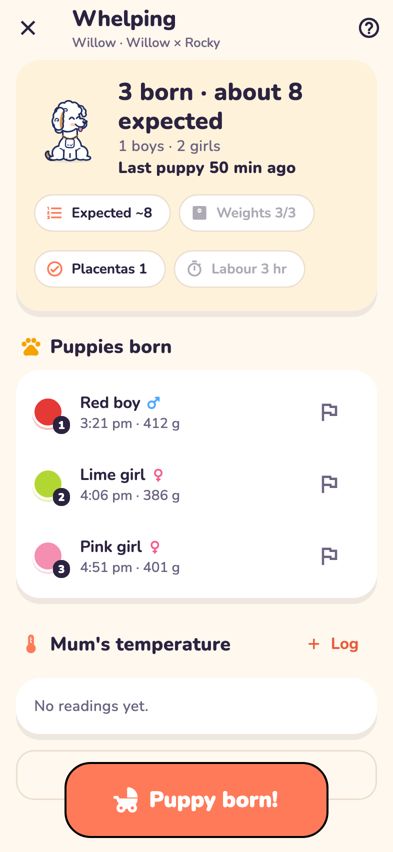
Whelping mode with the live summary and the Puppy born! button

Don't worry about getting every detail right. Collars, colours and markings can wait, and anything can be fixed later. If the phone locks or the app closes halfway through a puppy, the details are kept and the sheet reopens when you come back.
If it's been more than two hours since the last puppy, Whelping mode shows a red reminder. If mum is straining or you're worried at any point, call your vet.
The first two weeks
Weigh-ins. Weigh the litter at least once a day. Tap Weigh puppies on Home, type each weight and tap Save. Bernie shows you who gained and who dipped. If you'd like separate morning and evening weigh-ins, turn on Weigh twice a day in More.

Watching growth. The litter's Weights tab shows a growth chart and a Worth a look list if any puppy needs a closer look. A small dip in the first few days is common. Flags are prompts for your judgement, not a diagnosis.
The diary. Tap Diary note on Home (or Add note on the litter's Diary tab) to record feeds, cleaning, medication and anything worth sharing. Turn on Flag for the next shift for anything the next person must see.
Handover. When someone takes over, they tap Handover on Home. Shift handover shows flagged notes first, then what happened in the last 8, 12 or 24 hours, who still needs weighing and what's due today.

Weeks three to eight
The litter's Overview tab shows Typical milestones (eyes opening, first steps, weaning, the vet check) and Care due when worming or other care is coming up. When you've given a treatment, tap Record, check the puppies and tap Record for …. Each puppy gets a health note and the litter diary gets an entry.
Around six weeks, record microchips with Record a litter treatment and choose Microchip, then type each puppy's number.
Getting ready for go-home day
Add buyers on the Buyers tab as enquiries come in. Record what they're hoping for, move them along the stages and tap Choose a puppy when it's time to allocate. Use Invoice & payments to track the deposit, any extra charges and each payment.
On each puppy's screen, set the Desexing arrangement. When a puppy leaves, change the buyer's stage to Gone home. Breeders Aid checks for anything that still needs recording first.
When every puppy has gone home, open the litter, tap ••• and choose Mark litter as finished. It moves to Past litters, and everything stays saved.
Troubleshooting
- I'm nervous about recording births on the night. Can I practise? Yes. Tap Try it with practice data on the sign-in screen, or Switch to Demo Mode in More. Nothing you do there is saved.
- I recorded something wrong in the rush. Tap the puppy and use Edit. Every important correction is noted in the diary. See Fix a mistake in a litter or puppy.
- Two of my girls are due together. Each litter has its own Whelping mode and summary. See Whelp two litters at the same time.
- The care dates don't match my vet's plan. Change any puppy care date in the Calendar. The schedule is a general guide only.
- I finished the litter too early. Open it from Past litters on the Litters tab, tap ••• and choose Reopen litter.