
The Buyers tab follows each family from their first enquiry to the day their puppy goes home. Each buyer moves through stages: Applied, Approved, Waitlist, Deposit paid, Match day and Gone home (or Not proceeding). You can allocate a puppy, keep track of money, and see at a glance which puppies are still available.
Steps
Add a buyer
- Tap Buyers, then New buyer. (Or, on a litter's Buyers tab, tap Add buyer next to Waiting for a puppy to link them to that litter.)
-
Type their First name, Last name, Email, Phone and Notes (what they're hoping for), then tap Add buyer.
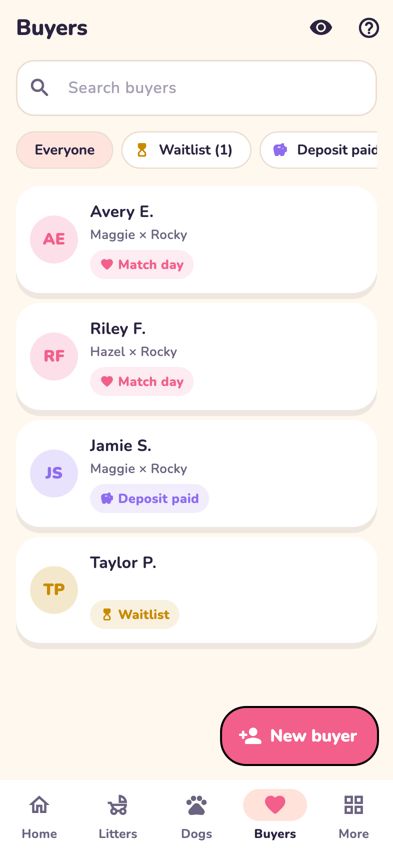
The Buyers tab with stage filters and each buyer's stage

Record what they're hoping for
- Tap the buyer to open them.
- On their enquiry card, tap Add what they're hoping for. Choose Sex, Size, Coat, Temperament and type a Colour, then tap Save preferences.
Move them through the stages
- On the enquiry card, tap the coloured stage label (for example Waitlist).
- Choose the new stage. Turning on the deposit switch also moves a buyer to Deposit paid.
Allocate a puppy
- On the enquiry card, tap Choose a puppy.
-
Pick the puppy from the list. Puppies already taken show Already allocated.
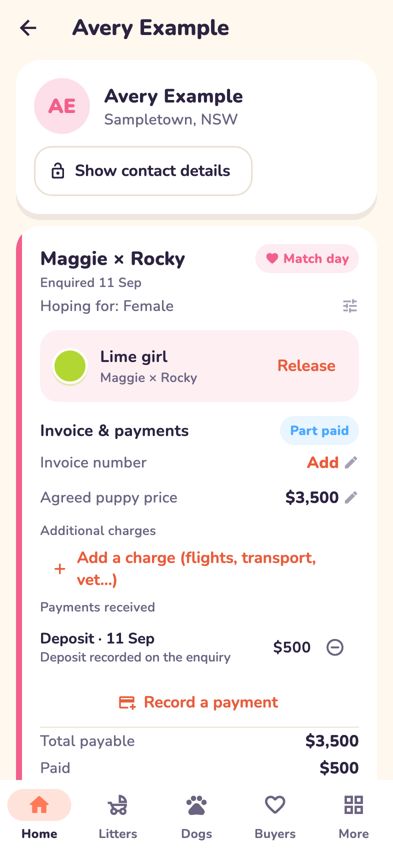
A buyer's page with their enquiry, allocated puppy and money - Changed plans? Tap Release next to the puppy, then Release again. The puppy becomes available and the allocation stays in the buyer's history.

Track the money
- Under Invoice & payments, tap Start invoice. It begins with the agreed price (and the deposit, if it's already received).
-
Tap Add a charge (flights, transport, vet…) for extras, and Record a payment each time money comes in. Choose Payment or Deposit, type the Amount and tap Save payment.
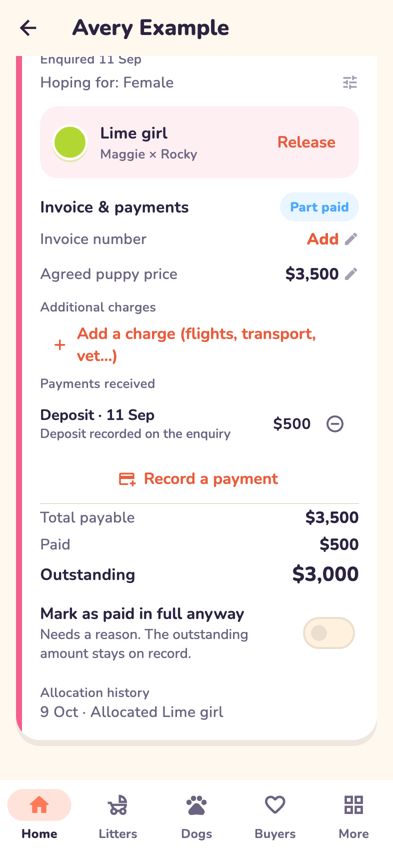
Invoice & payments with charges and payments received - Removing a charge or payment, or changing the price, asks for a reason. The old entry stays in the records, crossed out.

Go-home day
- On the enquiry card, tap the stage label and choose Gone home.
- Breeders Aid checks first. If a required desexing agreement hasn't been signed, it explains what's missing. If the puppy goes home before the litter's insurance starts, it asks you to Check the insurance.
Tips
- On a litter's Buyers tab you'll see Puppies allocated, Buyers waiting and Deposits received, and which puppies are still Available.
- Showing the app to someone? Tap the eye at the top of Buyers (or turn on Privacy mode in More) to hide buyer names and contact details.
- A buyer's phone and email are hidden until you tap Show contact details.
Troubleshooting
- It says "A first name is needed". Type at least a first name before tapping Add buyer.
- I added a buyer who was already in Breeders Aid. If someone with the same email already exists, their record is reused rather than duplicated.
- The puppy I want is greyed out. It's allocated to someone else. Release it from that buyer first.
- Choose a puppy says "No active litters". Only puppies in litters on the go can be allocated.
- I can't mark the puppy as gone home. Read the message: it tells you what needs recording first, and offers a button to do it.