
Breeders Aid accounts are set up by invitation, so you sign in with the email address your invitation was sent to. You can use your password, or ask for a sign-in email with a code if you'd rather not type a password.
Steps
Sign in with your password
- Open Breeders Aid.
- Type your email address in Email and your password in Password. Tap the eye to check what you've typed.
-
Tap Sign in.
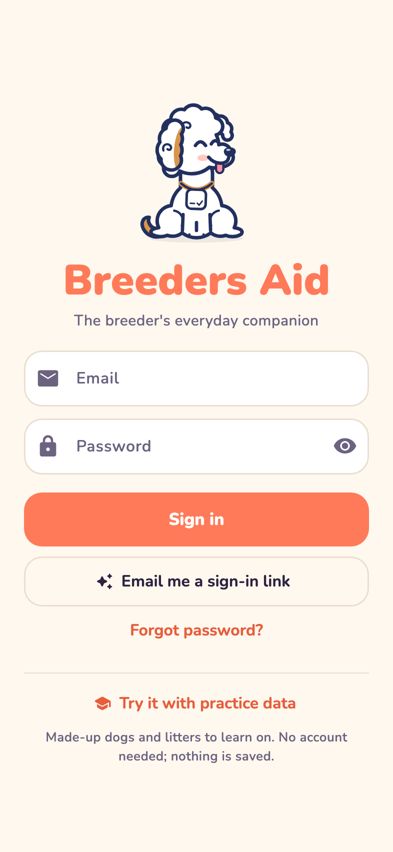
The sign-in screen with Email, Password and Sign in

Sign in with an emailed code
- Type your email address in Email.
- Tap Email me a sign-in link.
- A Check your email panel opens. Open the email from hello@breedersaid.com.
- Type the code from the email (usually 8 digits) and tap Sign in. Or, if the email is on this iPhone, tap the button in the email.
Sign out
- Tap More.
- Scroll to Account and tap Sign out, then Sign out again to confirm.
Tips
- Your iPhone can fill in your email and password for you if you've saved them.
- Just want a look around? Tap Try it with practice data on the sign-in screen. See Try Breeders Aid with practice data.
- In More, under Account, you'll see the name you're signed in as.
Troubleshooting
- It says "That email doesn't look right". Check for a typo or a missing dot, and that there are no spaces.
- My password isn't accepted. Tap Forgot password? to set a new one. See Reset your password.
- The sign-in email hasn't arrived. Check your Junk or Spam folder, and that you used the address your invitation was sent to.
- The button in the email opened in the wrong app. Use the code instead: type it into the Check your email panel in Breeders Aid. It works from any device and any mail app.
- The code says it has expired. Each email works once and only for a short time. Tap Email me a sign-in link again and use the newest email.
- I don't have an invitation. Breeders Aid accounts are by invitation only. Contact us through breedersaid.com if you'd like one.